
Bank transactions can be imported into SimplBooks in three ways:
If the transactions have been imported via the integration or from a file, but no suitable match is found automatically, they will remain pending. This means that the transactions do exist in the system, but they have not yet been saved and are not reflected in the accounting data. Regardless of which navigation path you use to access the transactions view, you will always see the same pending transactions.
● On the company overview page, there is a panel titled “Importable bank transactions” which displays the number of unprocessed transactions. By clicking “Continue here”, you will be taken to the transaction processing view.

You can start importing bank transactions from the company overview page by clicking the “Bank transactions import” link in the “Importable bank transactions” panel.
Alternatively, you can open the Receipts or Payments view from the Operation menu and click “Import”.
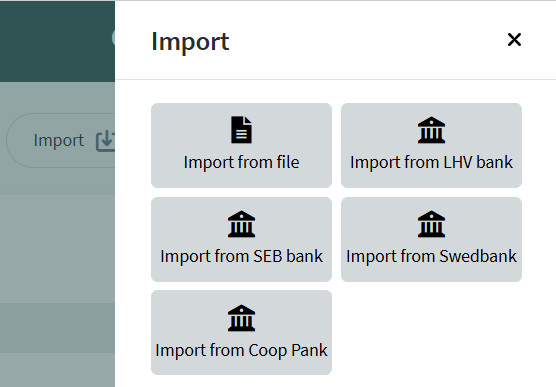 When importing from a file, there is no period restriction (the period must be set in the bank). However, when importing directly from the bank, transactions from the current day cannot be imported.
If you want to import transactions from before the bank integration was activated, note that banks have different limitations on how far back they allow transactions to be imported via the integration.
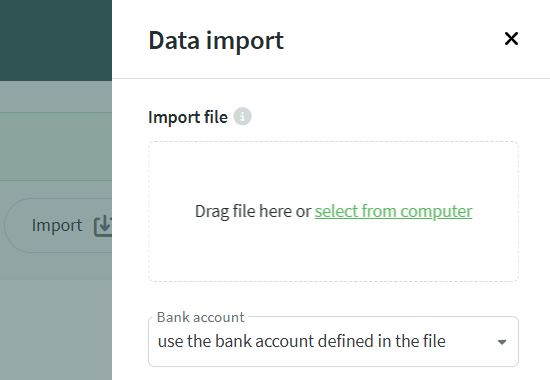
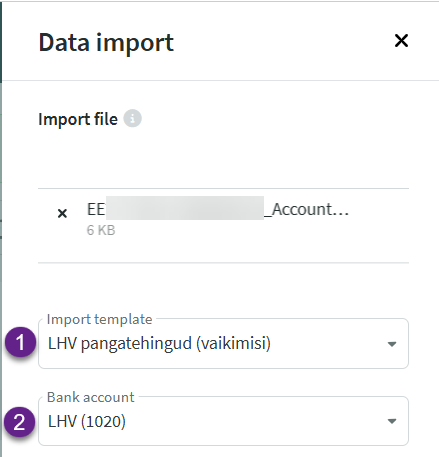
If no import template has been added, you will be prompted to map the fields in the next view.
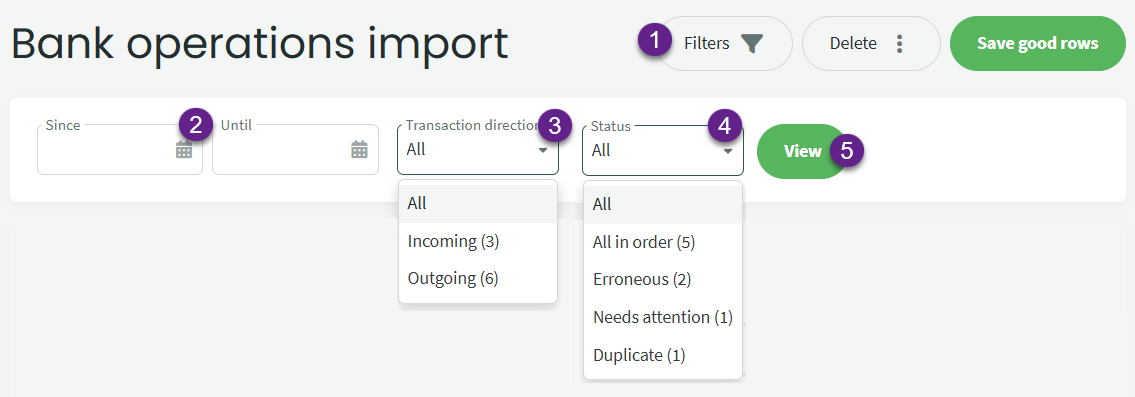
- The Filters button allows you to display transactions based on selected criteria.
- Date range – by filling in both fields, you can define an exact period for displaying transactions.
If you fill in only the “Since” field, transactions from that date onward will be displayed.
If you fill in only the “Until” field, transactions up to and including that date will be displayed. - Transaction direction – incoming or outgoing transactions.
- Status – allows you to display transactions with all statuses or narrow the view to a specific status.
- The View button applies the selected filters and displays the transactions match the chosen criteria.

6. The Delete button allows you to select which transactions you want to delete. When deleting, the system does not consider active filters.
Example: if you have added a filter to display only outgoing transactions and select “All erroneous” for deletion, all invalid transactions will be deleted – including incoming transactions.
7. Save good rows – this command allows you to save all reviewed correct transactions at once, without having to save each one individually.
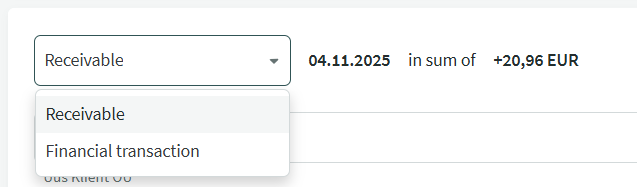
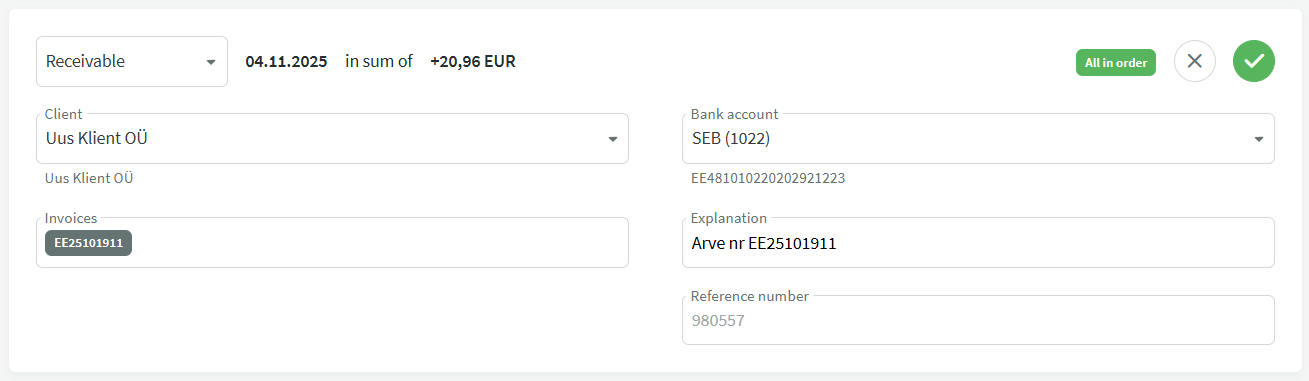
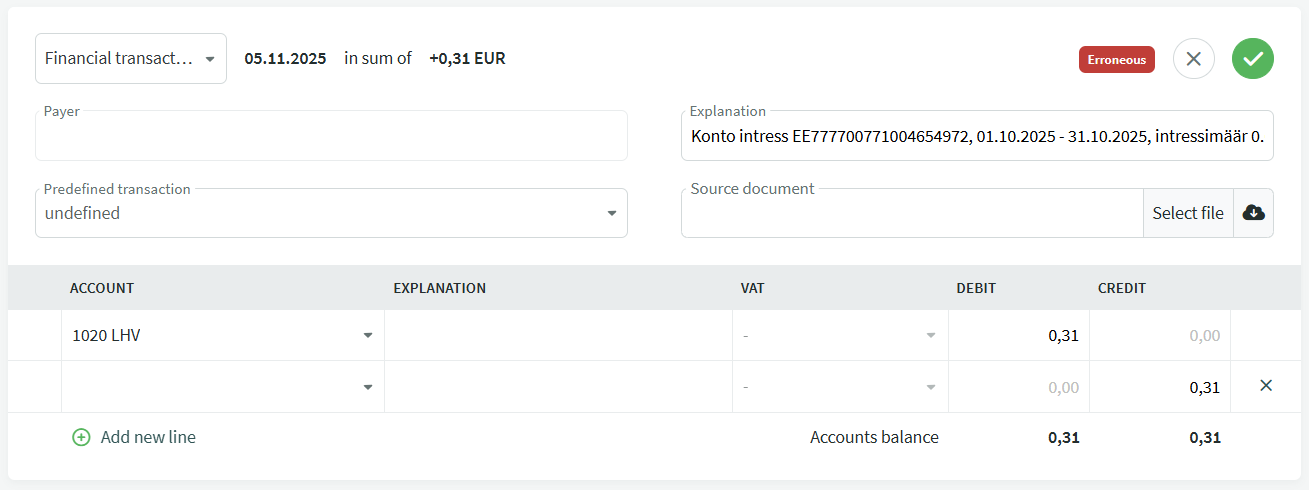
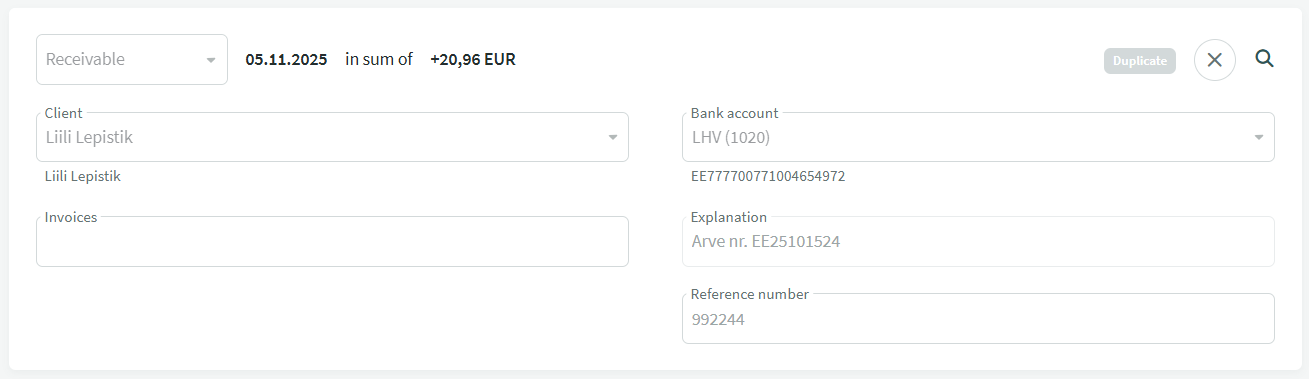
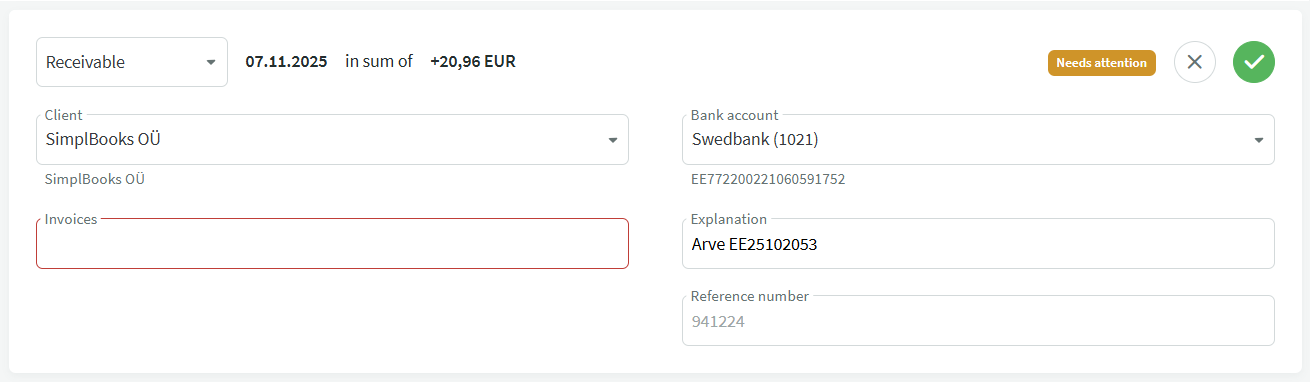
Receipts can be saved as either receipts or financial transactions. The transaction type is displayed in the upper-left corner of the bank transaction, next to the date and amount. If necessary, the type can be changed by clicking on it.
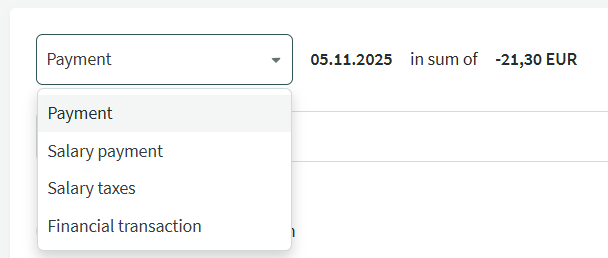
Outgoing payments can be saved as payments, salary payments, salary taxes or financial transactions. The transaction type is displayed in the upper-left corner of the bank transaction, next to the date and amount. If necessary, the type can be changed by clicking on it.
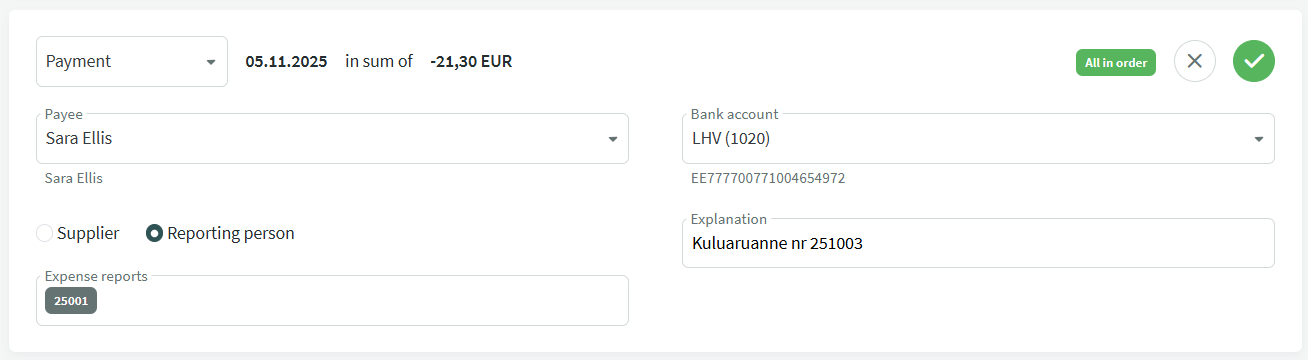
Payment to a reporting person: In this example, the payment is made based on an expense report. The expense report must be added beforehand, and during the bank import it will be linked to the payment automatically.
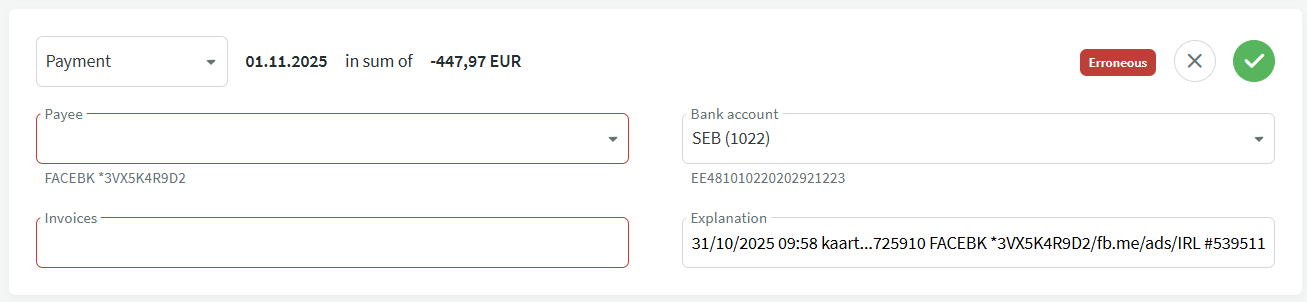
Card payment transaction: The system does not always find enough information in the description field to determine the correct supplier. The supplier must be selected manually by clicking the “Payee” field and starting to type the name. The invoice must also be selected by clicking the “Invoices” field.
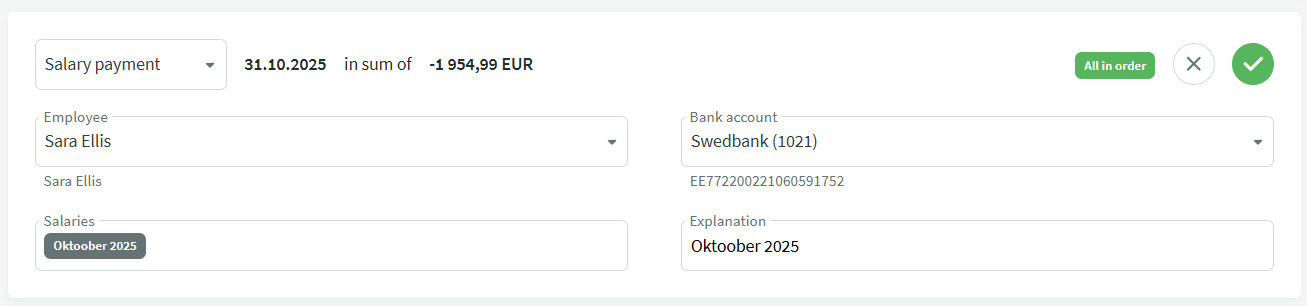
The salary calculation must be added beforehand. In this case, the system will automatically find the match and mark the salary as paid.
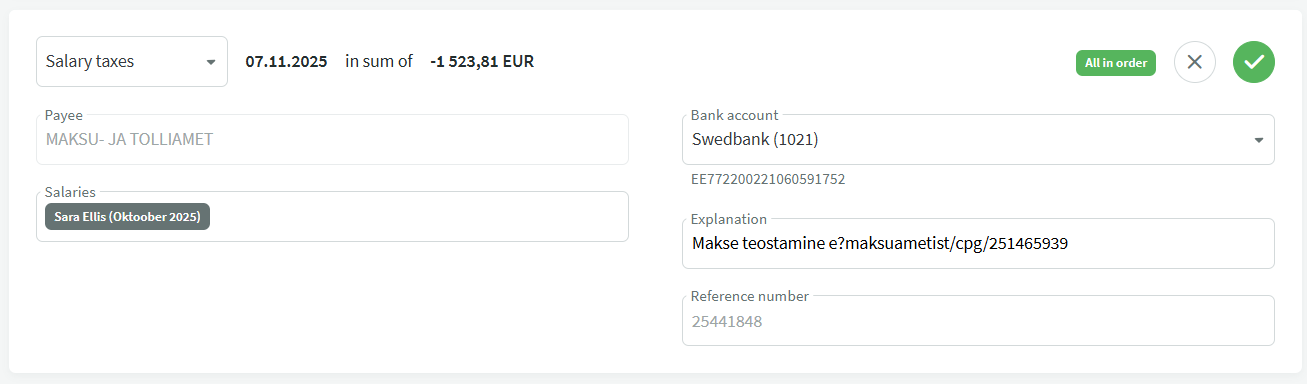
Transfer to the Tax and Customs Board for salary taxes: Select “Salary taxes” as the transaction type.
If the transferred amount also includes other taxes (e.g. income tax on interest, income tax on dividends, etc.), the transaction can still be saved as related to salary taxes.
The transaction will be recorded on the tax prepayment account (1520) and the entry for settling the tax liability will be created separately.
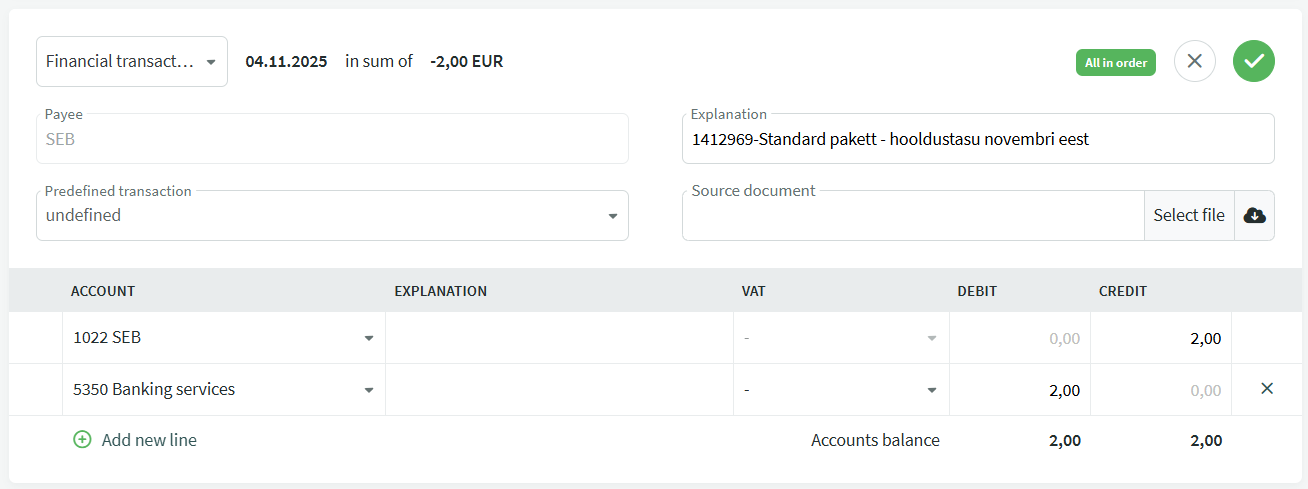
The bank service fee account is defined in the automatic transaction settings, and in most cases the system will correctly prepare and record the transaction. If necessary, the expense account can be adjusted on the transaction line.
If you have any additional questions, please write to us at support@simplbooks.ee

Leave A Comment?