What is the SimplBooks self-service portal (billing profile)?
In the self-service portal, you can view the details that are used to send invoices for software usage to your company.
This includes your company name, registration number, and the email address used for sending invoices – everything needed for us to issue invoices with correct information.
You can also see the companies (environments) linked to the billing profile and the plans selected for them, which will be reflected on the invoices.
If you are a new user and have just created an environment (a billing profile is created along with it), the environment has a 30-day trial period. During this period, you will receive notifications about the trial period ending.
If the software suits your needs and you wish to continue using it, you need to review and confirm your company details. By confirming the details, you confirm your intention to continue using the software, and invoices will start being issued for the use of the environment.
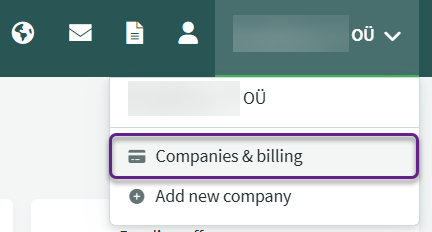
Advice To enable sending e-invoices, your billing profile must be reviewed and saved – this applies even during the trial period. Important The billing profile is only visible to the user whose email address was used to create the environment. Advice How to find the self-service portal?Hover over the company name to see the option “Companies & billing“. Clicking it will take you to the self-service portal.
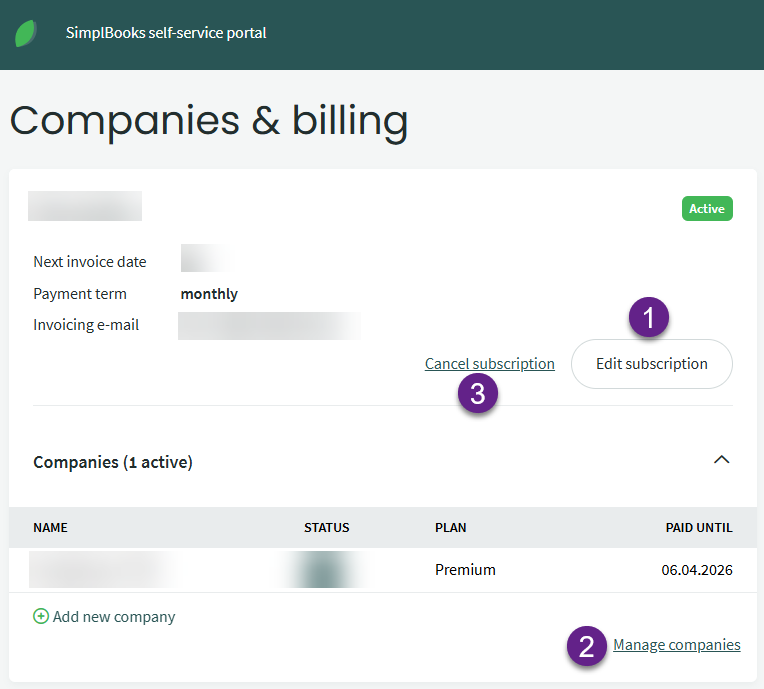
The self-service portal view will open, where you can choose the appropriate action. Explanations of the numbers shown in the image can be found below.
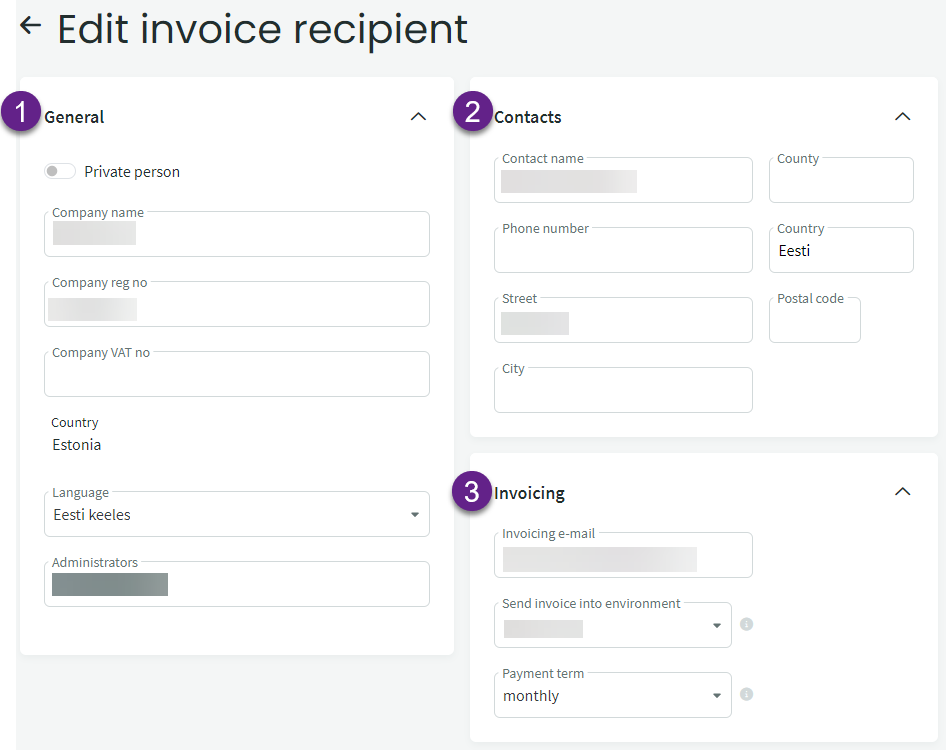
The information here is divided into three groups:
- General – in addition to the company’s basic details, this section also shows the administrator details. These details cannot be added or removed by the user. If you need to add an administrator, please contact support. (Note: the user must already be added and activated beforehand.)
- Contacts – these fields are automatically filled with data from the Estonian Business Register when the environment is created. You can also add the name and phone number of the company’s contact person here.
- Invoicing – multiple email addresses can be entered in the invoice email address field. Invoices can also be sent to the environment, where they will appear in the list of imported documents and can easily be saved as a purchase invoice.
You can choose the billing period to be either monthly or annually. If you would like a different billing period, please contact us at support@simplbooks.ee.
Here you can see the environments (companies) linked to your billing profile, along with their creation date, selected plan and the date they are paid through.
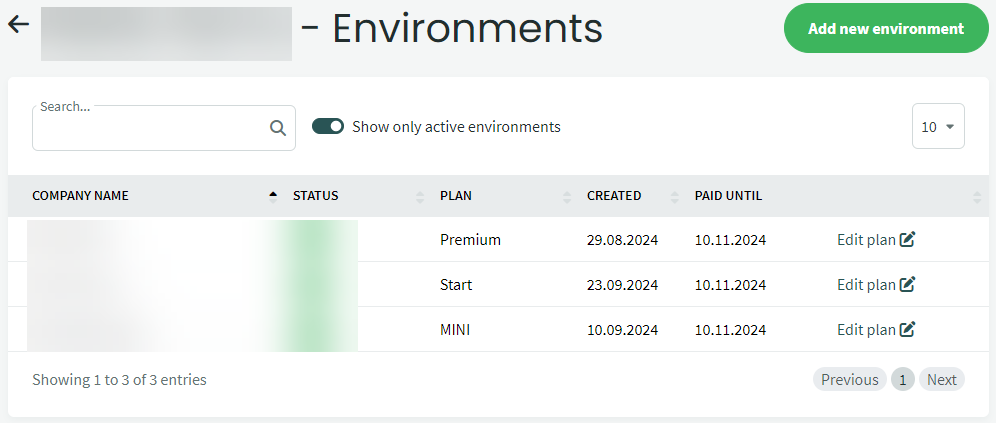 If you need to change the environment’s plan, click on “Edit plan.”
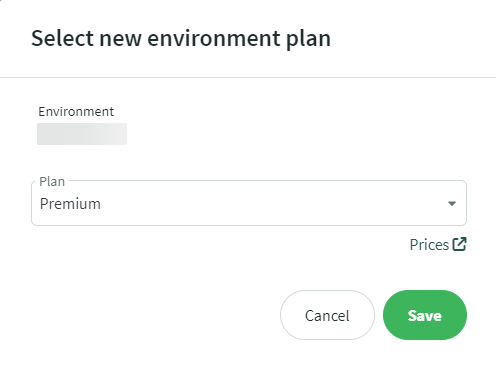
Make the appropriate selection and save the changes.
Important The plan change will take effect from the beginning of the next billing period. If you are upgrading from the Start plan to the Premium plan and need the API functionality activated immediately, our support team can assist you. Please write to support@simplbooks.ee and the necessary change will be made.If you want to delete the company, click on “Delete.”
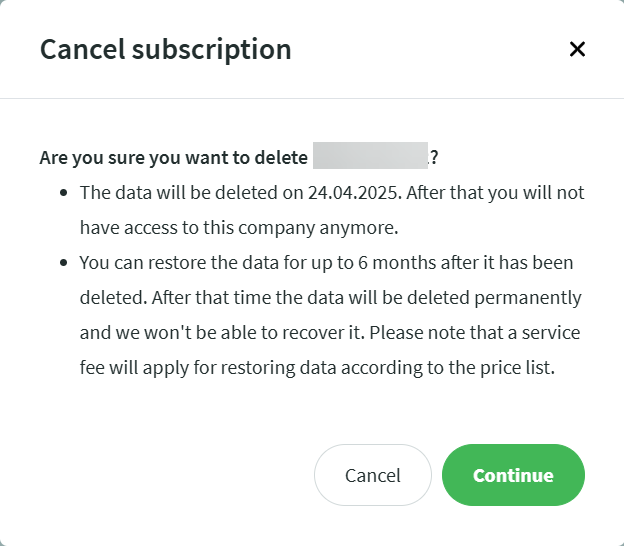
You can mark the environment for deletion if the invoice for the current usage period has been paid (environment status “Paid”).
If you have just received an invoice but wish to discontinue using the environment, please contact support at support@simplbooks.ee.
By clicking the “Cancel subscription” link, you can mark multiple companies (environments) for deletion at once. The invoice for the current usage period must be paid before you can confirm this action.

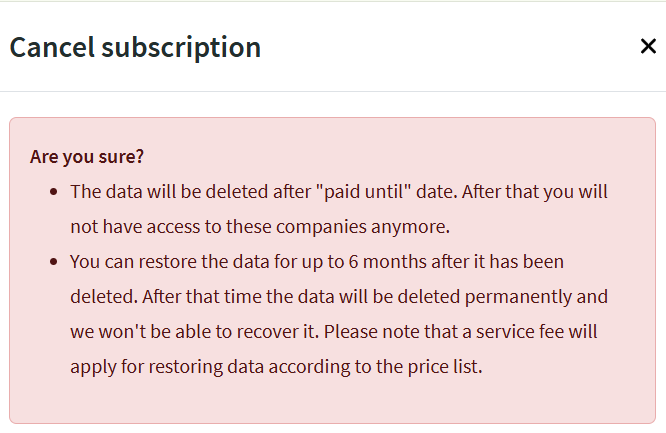
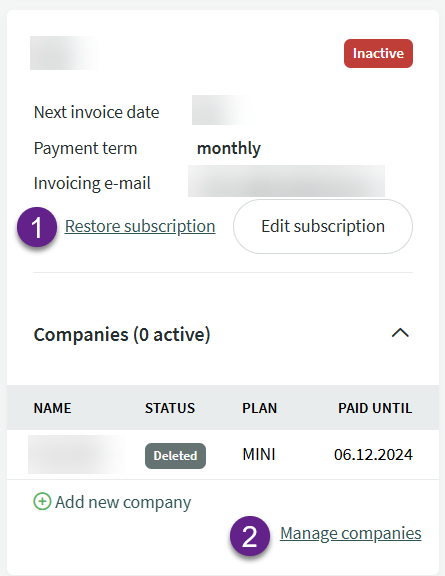
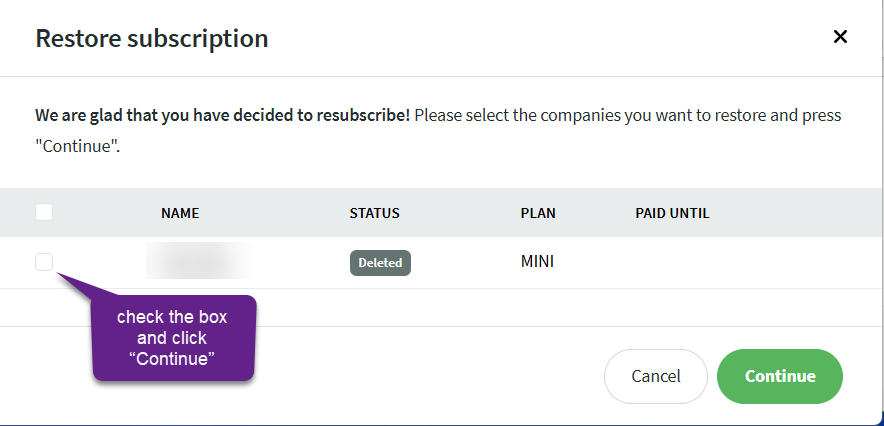
- Restore subscription – restores one or more environments (companies) at once. Click the link and select the company or companies you want to restore from the list. Then click “Continue“.
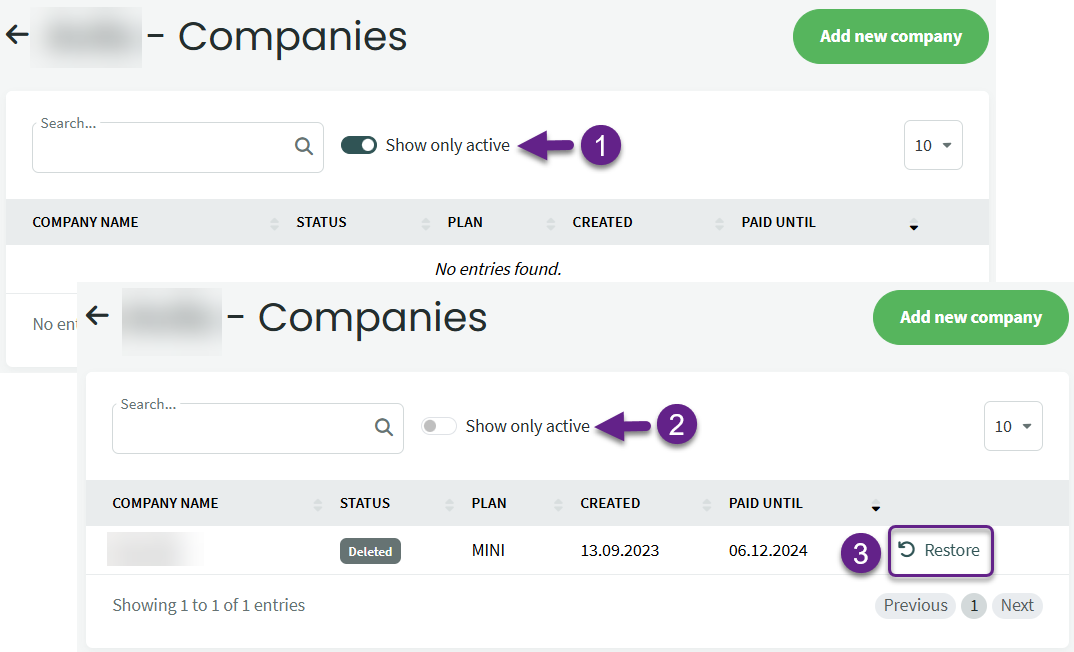
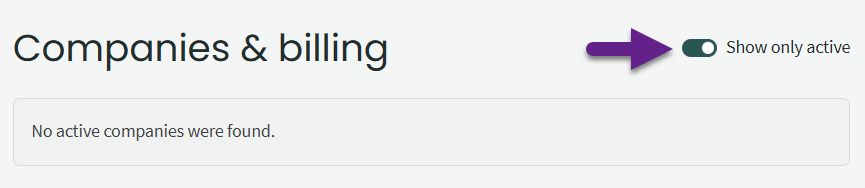
- Manage companies – here you can see all environments (companies) linked to your user. To view a deleted environment, disable the “Show only active” filter. Find the environment in the list or enter its name in the search field and click “Restore“.
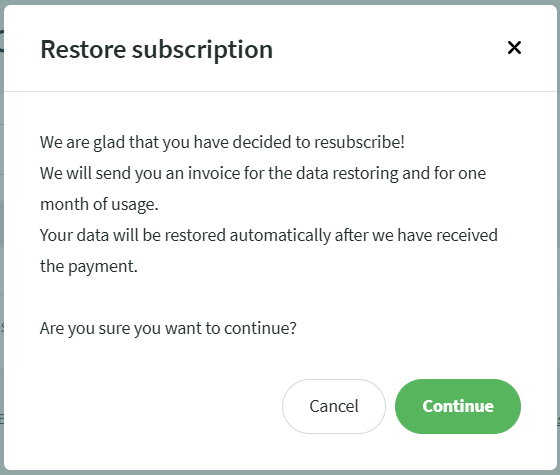
Next, the system will generate and send an invoice for the restoration fee. Once the invoice is paid and the payment is received by the SimplBooks system, the environment will be automatically restored.
● The restoration process may take up to 24 hours, depending on when it is initiated. Payments are automatically received in our system once per day, so restorations initiated in the evening or over the weekend may take longer.If only one company is linked to the user and that company also had billing profile management rights, the restoration process begins slightly differently.
- Log in to SimplBooks at https://secure.simplbooks.com/accounts/login
- You will be redirected to the page for creating a new environment. Instead of creating a new environment, click the green leaf in the upper left corner.
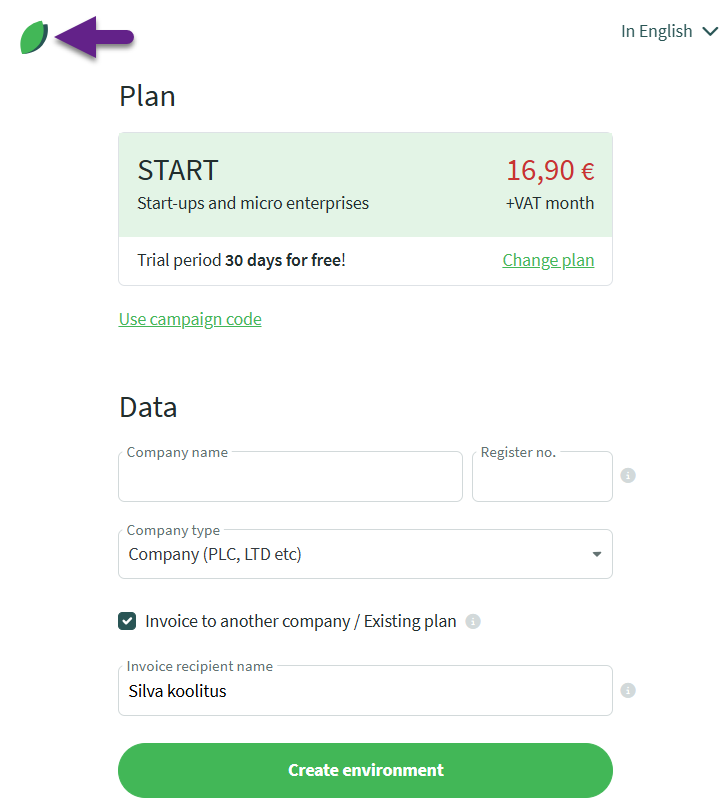
- This will take you to the self-service portal, where you need to disable the “Show only active” option. After that, you will see the billing profile linked to the user and can continue with the restoration process as described in section 4.
For additional questions, please write to us at support@simplbooks.ee.

Leave A Comment?