
You can identify a saved VAT statement by the green dot next to the period name.

The VAT statement is saved automatically when it is submitted to e-MTA via the integration or downloaded as an XML file. The statement can also be saved from the Actions menu, although this is not recommended as the primary method.
When the statement is saved, the system also automatically creates a period closing entry for the VAT accounts.
If changes affecting the statement data are made after the statement has been saved, the rows containing changed data are displayed in red. A warning on a red background is also displayed above the statement for the relevant period, indicating that the data needs to be reviewed.
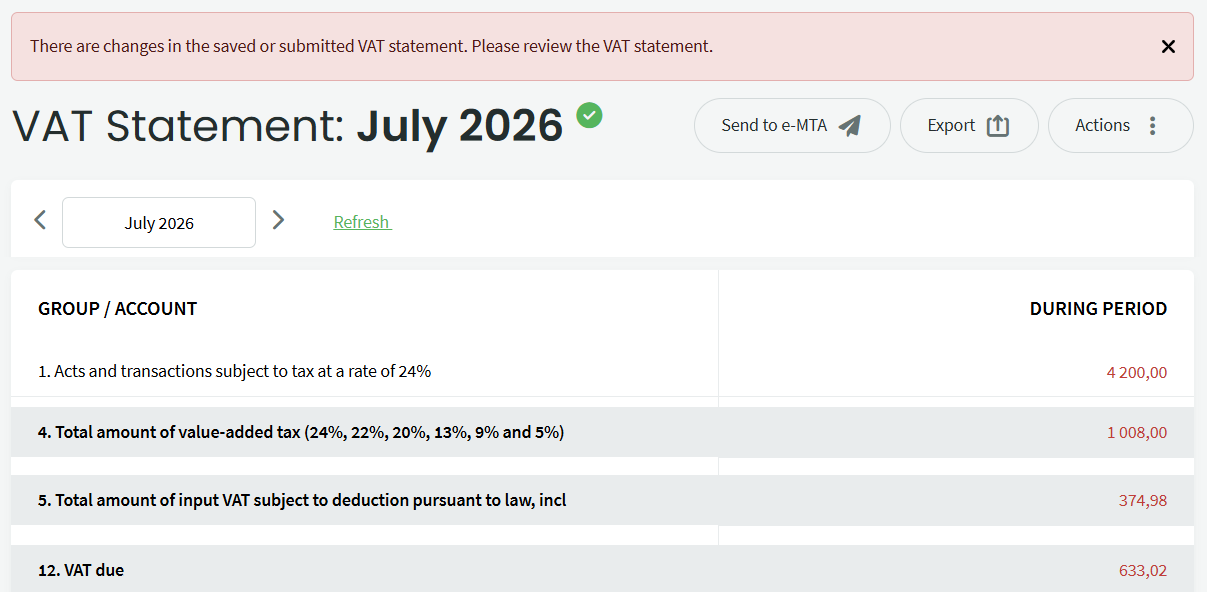
Example
When you hover over the amount in the first row, the previously saved amount is displayed.

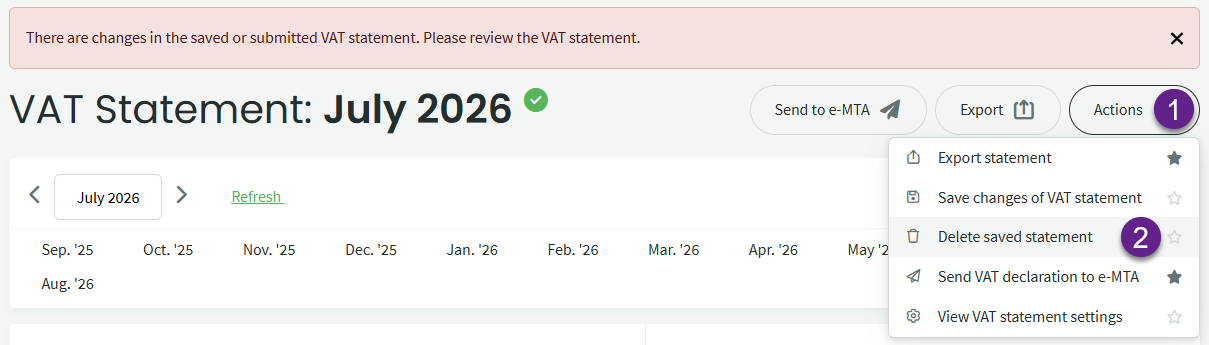
Once you have reviewed the data and confirmed that the changes are correct, the saved statement must be deleted. You can then submit the statement containing the updated data to e-MTA.
To delete the saved statement, open the Actions menu (1) and select “Delete saved statement” (2).
The VAT account closing entry must also be deleted.
If the closing entry is not deleted, the system cannot create a new entry based on the corrected data.
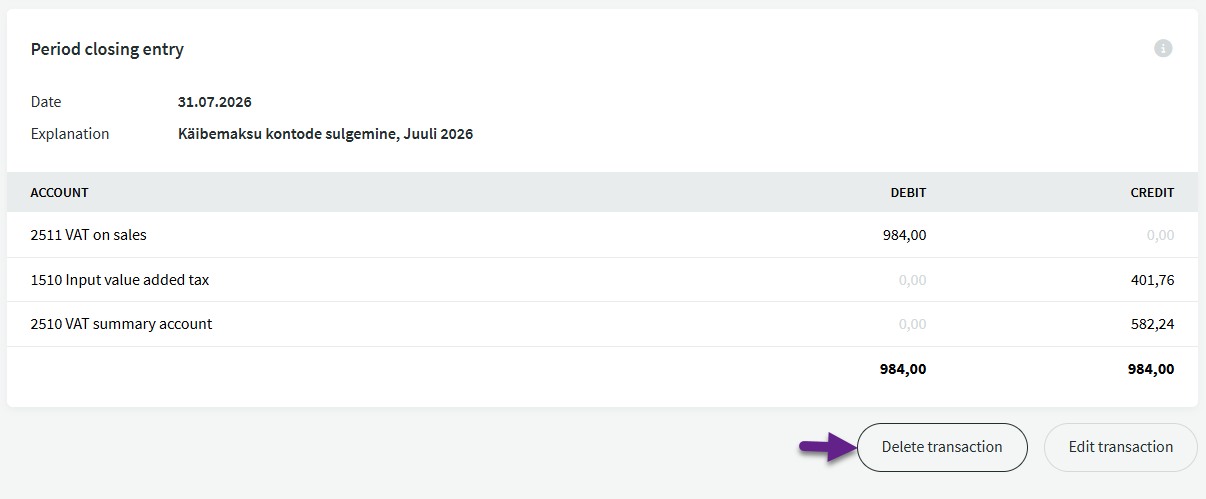
Once both the saved VAT statement and the closing entry have been deleted, submit the statement to e-MTA, export it as an XML file, or select “Save VAT statement” from the Actions menu.
For additional questions, please contact us at support@simplbooks.ee.

Leave A Comment?